

Free Online Audio Trimmer & Cutter
Cut, trim, and split audio tracks with precision waveform scrubbing. Export clean MP3 or WAV clips with zero quality degradation.
Drop your audio here
or click to browse. MP3, WAV, FLAC, M4A, OGG and more
Trim Audio Online With Exact Control
Mark the part you need on a waveform and hear it before you save. A plain trim keeps the original quality.
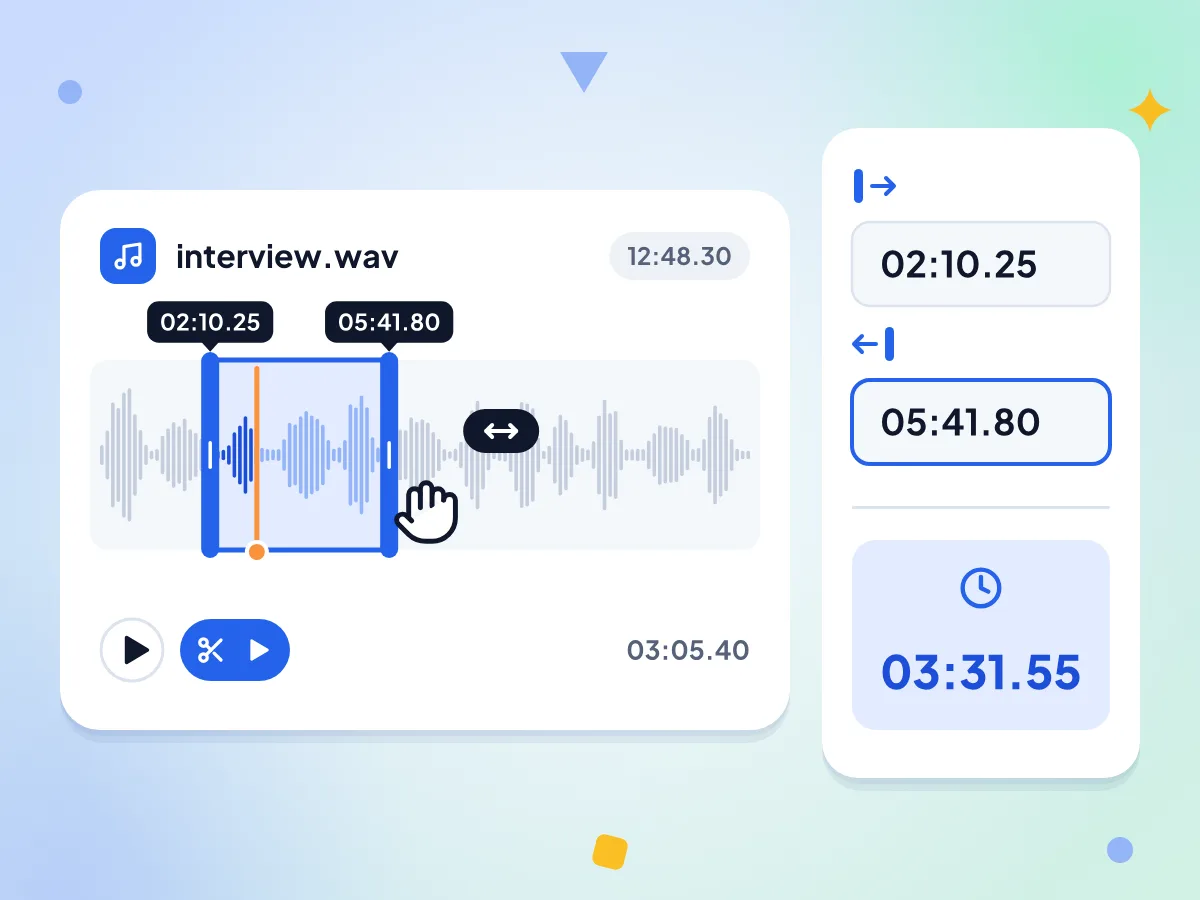
Trim Audio by Dragging the Waveform
Your file opens as a waveform with the whole track selected. Drag either handle or slide the selection, and the Start Time and End Time fields follow. Press Preview to hear just that part.
- Drag handles or move the whole selection
- Preview plays only the selected part
- Start and End update as you drag
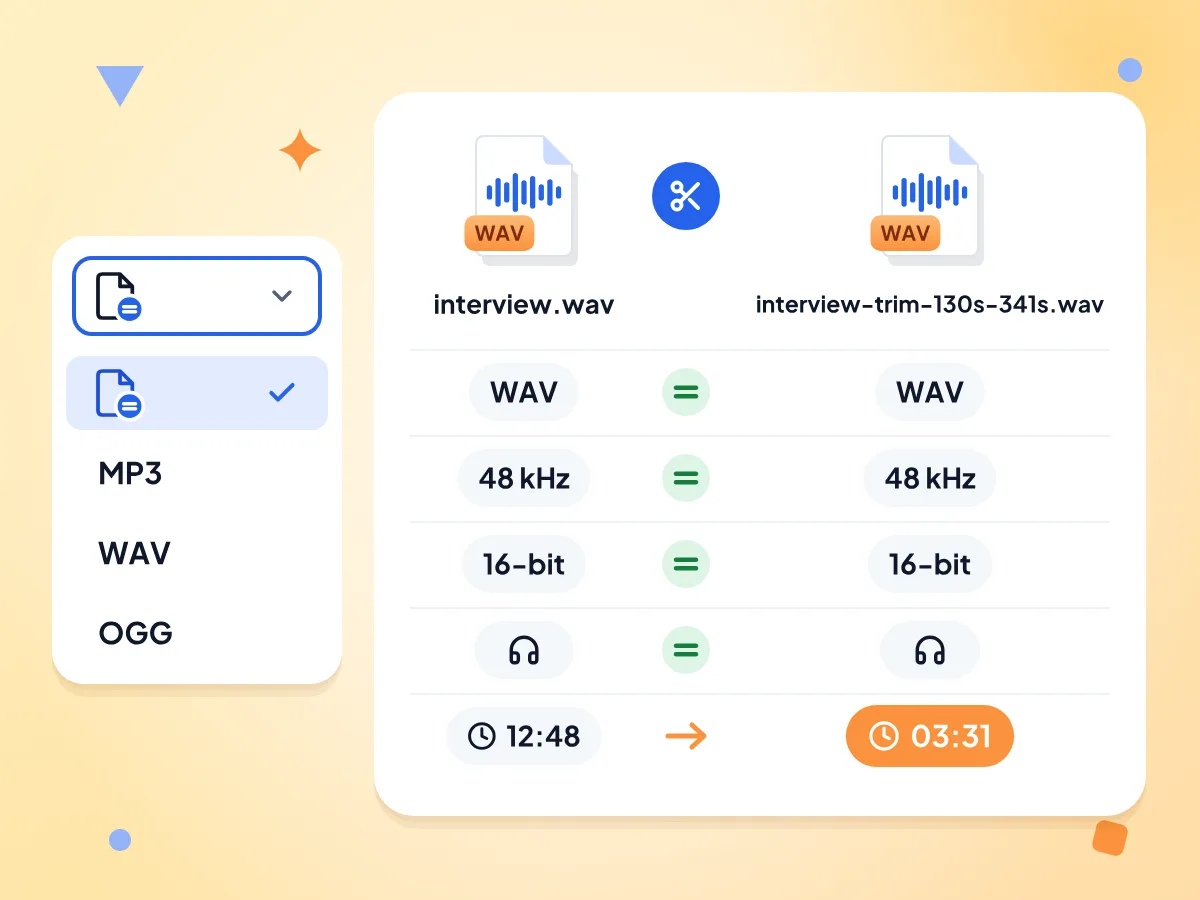
Trim Audio Without Losing Quality
Leave Output Format on Same as input and the trimmer copies the original audio into a shorter file. Nothing is re-encoded, so the bitrate, sample rate and channels match your source.
- Same as input is selected by default
- No re-encoding on a plain cut
- A 48 kHz WAV stays 48 kHz
Type Exact Start and End Times
Type times as minutes, seconds and hundredths, like 01:23.45, or as plain seconds, like 83.5. The Selected box shows the clip length before you press Trim Audio.
Save as MP3, WAV or OGG
Change Output Format to convert while you trim. MP3 uses a high quality setting, WAV is 16-bit PCM and OGG is Vorbis. Converting re-encodes the audio, so keep Same as input for a lossless cut.
Keyboard Shortcuts for Quick Cuts
Press Space to play or pause. Press [ to set the start and ] to set the end at the playhead. The Set Start and Set End buttons do the same with a click or tap.
Trim WAV, FLAC, M4A and More
Open MP3, WAV, FLAC, M4A, AAC, OGG or Opus files. A plain trim keeps each file in its own format, so a WAV stays a WAV and an M4A stays an M4A.
How to Trim Audio in 3 Steps
Open your audio file.
Drop an MP3, WAV, FLAC, M4A or other audio file on the page, or click to choose one. It opens as a waveform.
Mark the part to keep.
Drag the two handles, type start and end times, or press [ and ] while it plays. Press Preview to hear your selection.
Trim and download.
Keep Output Format on Same as input for a lossless cut, or pick MP3, WAV or OGG. Press Trim Audio, then Download.
Who Uses the Audio Trimmer
Podcasters, students and anyone who needs a clean audio cut without installing editing software.
Podcasters and Interviewers
Cut the warm-up chat and the goodbye from a recorded episode or interview. Trim WAV or M4A recordings from your recorder or phone before you edit or publish them.
- Remove dead air before the first word
- Pull a short quote for a social post
- Keep a WAV master as a WAV file
Voice Memos and Meetings
Phone voice memos and meeting recordings often run long. Keep only the part that matters, then send a shorter file to a colleague, a teacher or your notes app.
- Trim M4A voice memos from your phone
- Cut a long meeting down to one topic
- Save the clip as MP3 for easy sharing
Video and Slide Projects
Get a music bed or sound effect to the exact length your video or slide show needs. Type the times to the hundredth of a second and preview the clip first.
- Fit background music to a 30-second video
- Cut a sound effect down to under a second
- Save as WAV for your video editing software
Frequently Asked Questions
Answers to the most common questions about trimming audio files online.
How do I trim an audio file online?
Open the file here, mark the part you want, and press Trim Audio. You can mark it by dragging the handles on the waveform, by typing start and end times, or with the [ and ] keys while it plays. When Trim complete appears, press Download.
Does trimming audio reduce the quality?
No, not while Output Format stays on Same as input. The trimmer then copies the original audio data, so the bitrate, sample rate and channels do not change. A different format or a fade re-encodes the clip, which can lose a little detail with MP3 or OGG.
Which audio formats can I trim here?
Any file your browser treats as audio. MP3, WAV, M4A, AAC, OGG and Opus trim and keep their format. FLAC trims too, but some players show the original length. Video files such as MP4 are refused on this page, so pull the sound out of them first.
How do I enter an exact start and end time?
Type it in the Start Time and End Time fields as minutes, seconds and hundredths, like 02:15.50, or as plain seconds, like 135.5. There is no hours field, so write 1 hour 5 minutes as 65:00.00. The waveform handles move to match.
Can I save a trimmed clip as WAV?
Yes. Set Output Format to WAV and the clip is saved as 16-bit PCM WAV, which most audio and video editors open. WAV files are much larger than MP3 or M4A. If your source is already a WAV, the trim copies the audio without changing it.
Is there a file size limit for trimming audio?
There is no fixed size limit and no daily cap. The whole file is loaded into your browser's memory, though, so a recording several hours long can fail on a phone or an older computer. If that happens, close other tabs and try again on a desktop browser.
Why is the waveform not showing for my file?
Your browser draws the waveform, and browsers can't read every audio format. If it stays blank, the end time stays at 00:00.00 and the trim can't start. Convert the file to MP3 or WAV with the Audio Converter, then open the new file here.
Is it safe to trim private recordings here?
Yes. Your recording is opened and cut inside this browser tab and is never sent to our servers. The page does send anonymous usage events, such as the start and end times you picked and a rough file size range, but never the audio or its name.
Can I trim audio on my iPhone or Android phone?
Yes. Open this page in Safari, Chrome or another mobile browser; no app or account is needed. Drag the handles with your finger, or tap Set Start and Set End while the audio plays. To turn part of a song into a ringtone, see the MP3 Cutter guide.
Can I trim several audio files at once?
No. The trimmer opens one file at a time and makes one clip per trim. To trim another file, press Upload another file at the top of the editor and drop the next one. Each new file starts with the whole track selected.
Can I trim the audio from an MP4 video?
Not on this page, because it only opens audio files. Pull the sound out of the video with the Video to MP3 tool, then open the MP3 here and trim it. To shorten the video itself, with picture and sound, use the Video Trimmer.
Explore More Tools
Discover other free tools that work great alongside this one