

Free Online Image Resizer
Resize photos by width, height, percentage, or file size. Batch process multiple pictures at once with aspect ratio lock.
Drop your images here
or click to browse. JPG, PNG, WebP, GIF, and BMP, single or batch.
Everything You Need to Resize Images Online
Resize by pixels, percent, longest edge, or target file size. Choose a fit mode, pick your output format, and process one image or a whole batch.
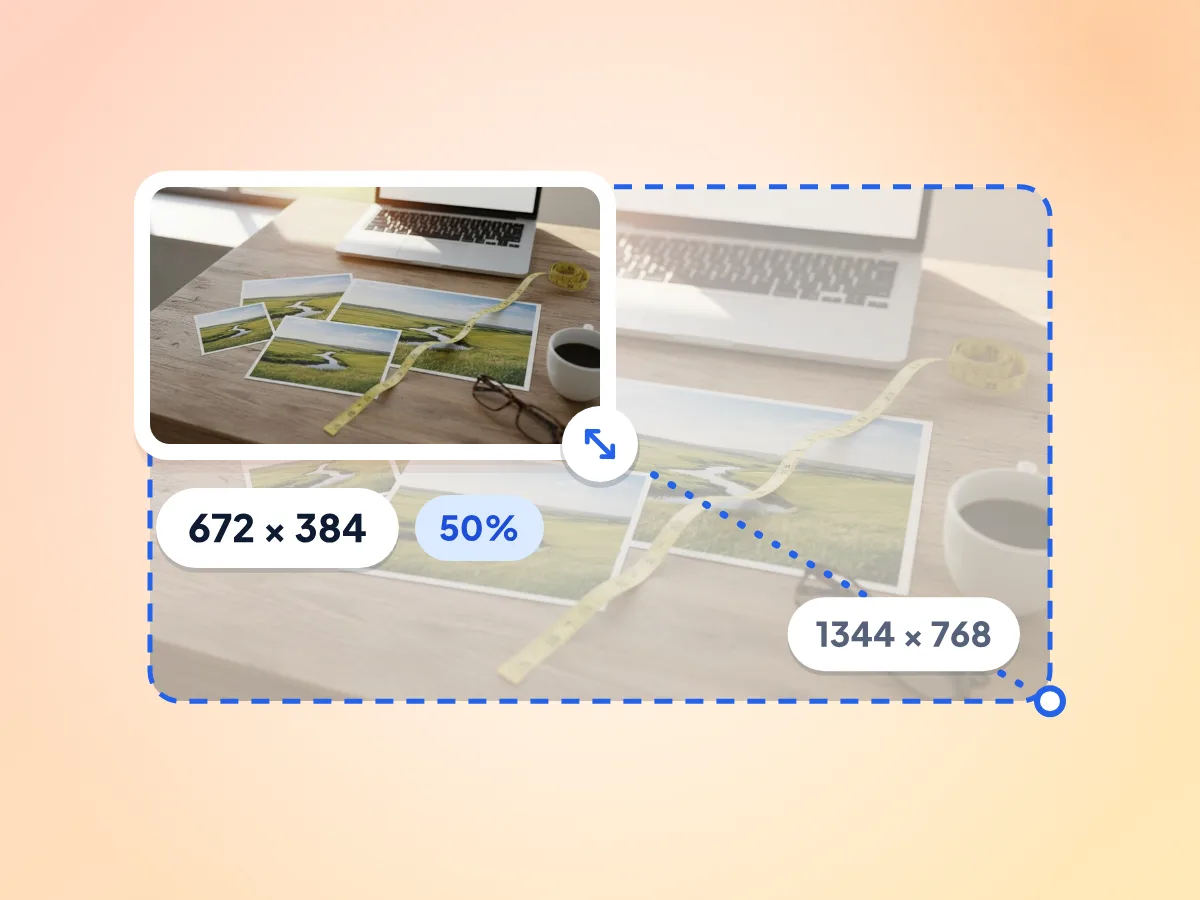
Resize Without Losing Quality
Scale a photo by percent and both sides shrink together, so 1344 × 768 at 50% becomes 672 × 384. Shrinking keeps detail sharp, while enlarging past the original size always softens it.
- Scale from 25% to 200% in one click
- Width and height keep their proportions
- New size shown before you resize
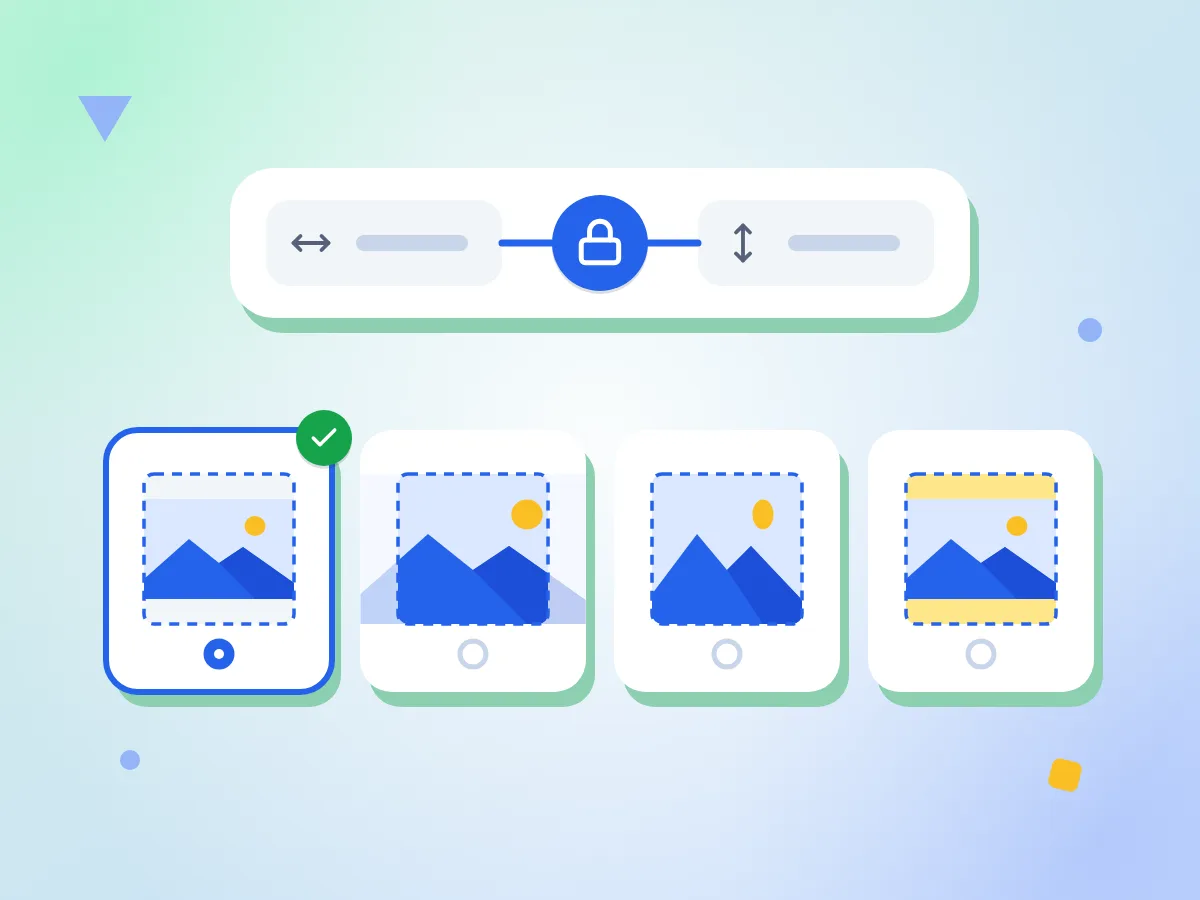
Resize Images Without Stretching
Lock the proportions so resizing never stretches your photo. Or turn the lock off and pick stretch, cover, contain, or pad to control how the new size is filled.
- Aspect ratio lock is on by default
- Cover crops the edges to fill the size
- Pad adds borders instead of cropping
Presets for Social, Web and Print
Pick from 39 ready-made sizes in five groups: Social, Web, Print, Device and Icon. One click sets the exact size, like 1080 × 1350 for an Instagram portrait or A4 at 300 DPI.
Your Photos Stay on Your Device
Your images are resized on your own computer or phone and saved straight to your downloads. The photos never leave your device, so private pictures and client work stay private.
Resize in Pixels, Inches or CM
Switch between px, %, inches, and cm, and set a DPI from 72 for screens up to 600 for professional print. Enter exact pixel dimensions, or scale by a percentage instead.
Resize to a Target File Size
Type a target like 100 KB or 2 MB, or tap a quick size. The tool tries up to 8 quality levels, then shrinks the pixel size in steps to get under it.
How to Resize an Image in 3 Steps
Add your images.
Drop one photo or several onto the page, or click to choose them. Two or more files open a batch queue that uses one set of settings.
Pick the new size.
Choose W × H, Percent, Max edge or File size, or open Presets for a ready-made size. Set the output format and quality in the same panel.
Resize and download.
Click Resize Image, check the before and after view, then click Download. When two or more batch files are done, they save as one ZIP.
Who Uses This Image Resizer
Social media managers, web developers and online sellers use it to resize photos for platforms, pages and print.
Social Media Creators
Hit exact platform sizes with one-click presets instead of doing the math yourself. A preset crops the photo to fill the frame, so faces and products are not squashed.
- Instagram Square, Portrait, and Story presets (1080×1080, 1080×1350, 1080×1920)
- Facebook Cover, Twitter Header and LinkedIn Banner presets
- YouTube Thumbnail preset at the recommended 1280×720
Web Developers and Bloggers
Cut page weight by serving images at the size they are shown. Set a longest edge, convert to WebP or AVIF, and check the new file size before you download.
- Cap hero images at a 1920 px longest edge
- Run one image at 640, 1280 and 1920 px for srcset
- Convert to WebP or AVIF while resizing for smaller file sizes
E-commerce and Email Teams
Keep product photos and campaign images consistent across every channel. Drop a whole set at once, apply one size and format, and download the results together.
- Batch resize product photos and download them as one ZIP
- Aim for a KB or MB limit on email and upload forms
- Cover or Pad gives every thumbnail the same width and height
Frequently Asked Questions
Answers to common questions about resizing images online.
How do I resize an image without losing quality?
Make the image smaller, not larger, and keep the default Lanczos filter or pick Mitchell. For JPEG, WebP or AVIF, keep quality high; the default is 90. Enlarging past the original resolution always softens the result somewhat, whichever filter you use.
How do I resize an image to a specific pixel size?
Open the W × H tab and type the width and height in pixels. Keep the lock on to keep the proportions. For a size with a different shape, turn the lock off and choose Stretch, Cover or Pad under Fit & crop.
How do I resize an image in inches or cm?
Set the DPI first under Advanced: 72 for screens, 300 or 600 for print. Then switch the unit in the W × H tab from px to in or cm and type your size. The tool shows the pixel result, such as 2550 × 3300 px for 8.5 × 11 in at 300 DPI.
How do I resize multiple images at once?
Drop more than one file into the upload area to open the batch queue. Set your dimensions, format, and quality once, click Resize, and download every finished file together as a single ZIP.
How do I resize an image to 100 KB or another file size?
Open the File size tab and type a target such as 100 KB, or tap a quick size from 100 KB to 5 MB. The tool tries up to 8 quality levels and keeps the sharpest version that fits. JPEG, WebP and AVIF shrink most.
Why is my resized file still bigger than the target size?
Because the target is too small for that image at any quality. The tool then shrinks the width and height by 20% at a time, up to 8 times, until the file fits, so the image can end up smaller in pixels than you set. If it never fits, you get the smallest try, so check the new file size.
What is the difference between resizing and cropping an image?
Resizing changes the pixel size of the whole picture, so nothing is cut off. Cropping removes part of it. The Cover fit does both: it fills your exact width and height and trims what sticks out, with a 9-point anchor to choose which part stays.
Can I resize an image without stretching it?
Yes. Leave the aspect ratio lock on and the height follows the width you type, so the picture keeps its shape. For a different shape, turn the lock off and pick Cover to trim the edges or Pad to add borders instead of Stretch.
How do I resize an image to A4 or Letter size?
Open Presets and pick a size from the Print group, such as Letter at 2550 × 3300, A4 at 2480 × 3508 or Postcard 4×6 at 1200 × 1800. These sizes are set for 300 DPI. A preset crops the photo to fill the frame; pick Pad to keep the whole photo.
Which image formats can I resize?
You can resize JPG, PNG, WebP, AVIF, GIF and BMP files and save them in the same format or as JPEG, PNG, WebP or AVIF. Transparent images keep their transparency unless saved as JPEG or BMP. An animated GIF comes out as a still image of its first frame.
Does resizing remove EXIF and location data?
Yes, by default. The Strip metadata switch under Advanced removes EXIF, GPS location and XMP data, and turns the photo upright first so it isn't saved sideways. The color profile is kept so colors look the same. Turn the switch off to keep all metadata.
Is it safe to resize private photos here?
Yes. Resizing happens on the computer or phone you're using, and each new file goes to your downloads folder, so private photos stay with you. For usage stats, the page notes the file type, a size range and which settings you picked. It never records the picture itself or its file name.
Explore More Tools
Discover other free tools that work great alongside this one
Image Compressor
Reduce file size without losing quality
Background Remover
Remove image backgrounds and save a transparent PNG
Image Converter
Convert between 30+ image formats
WebP Converter
Convert to and from WebP format
PNG Converter
Convert to and from PNG format
SVG to PNG
Turn SVG files into transparent PNG images