

Free Online Image Compressor
Shrink image files by up to 80% while preserving visual quality. Compress JPG, PNG, WebP and AVIF in bulk with exact KB targets.
Drop your images here
Supports JPEG, PNG, WebP, AVIF, GIF, HEIC, and more
See What Compression Actually Costs You
The same photo at two file sizes. Drag the handle and look for the difference.
Compress Images Online in 3 Steps
Add your images.
Drop one photo or a whole batch onto the page, or click to choose files from your computer or phone. Each file appears in a queue.
Set quality or a target size.
Drag the quality slider, or type a target like 100KB or 1MB. Pick an output format such as JPEG, WebP or AVIF, and resize if you also need smaller dimensions.
Download your files.
Click Compress Image, then save each file on its own or get every finished image in one ZIP. No account needed.
Everything You Get From This Free Image Compressor
Real file size savings, KB target sizes and files that stay on your device. Compress one photo or a whole batch without installing anything.
Bulk Compress Images, Download One ZIP
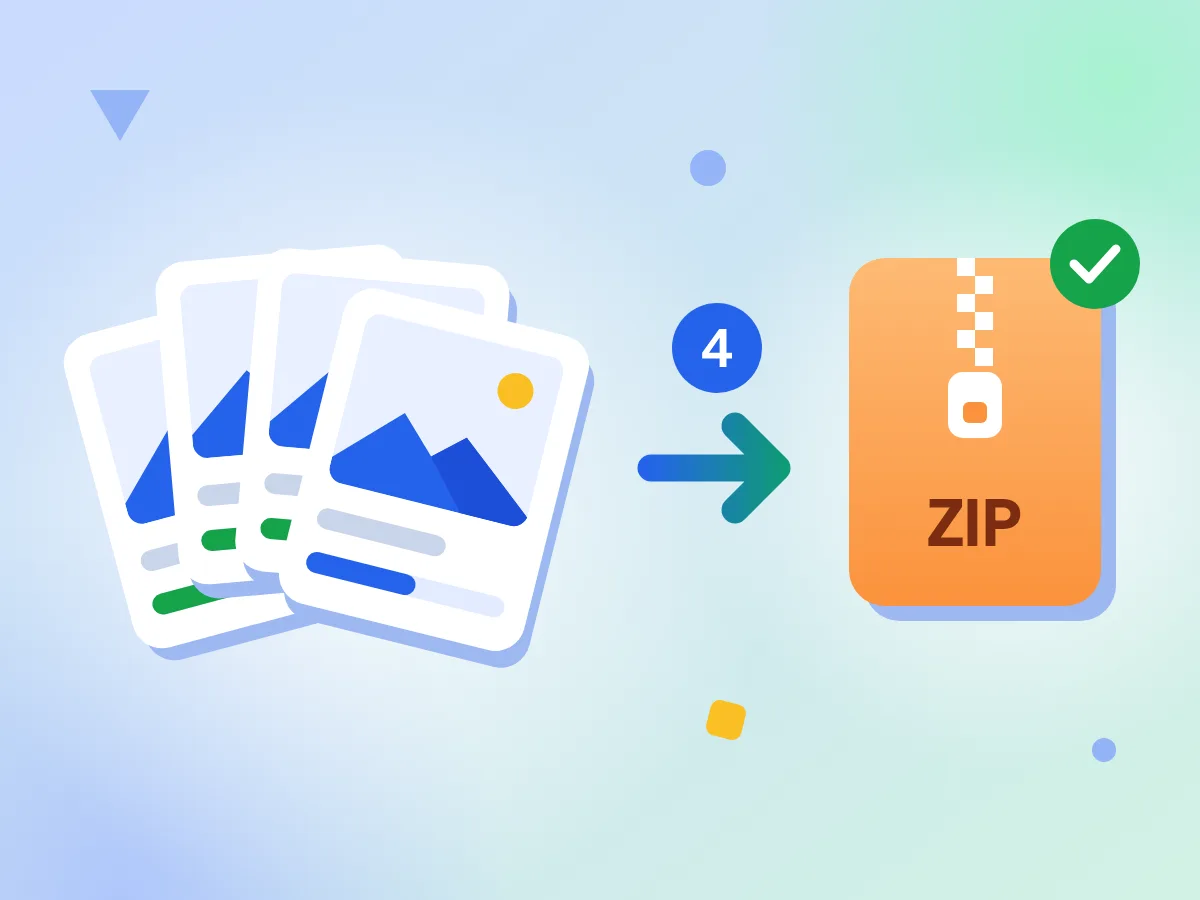
Drop in as many photos as you need and compress the whole batch with one click. Each file shows its own status, and the finished images download together in one ZIP.
- No set limit on photos per batch
- Each photo shows its own status
- All finished files in one ZIP
Compress Images With a Quality Slider
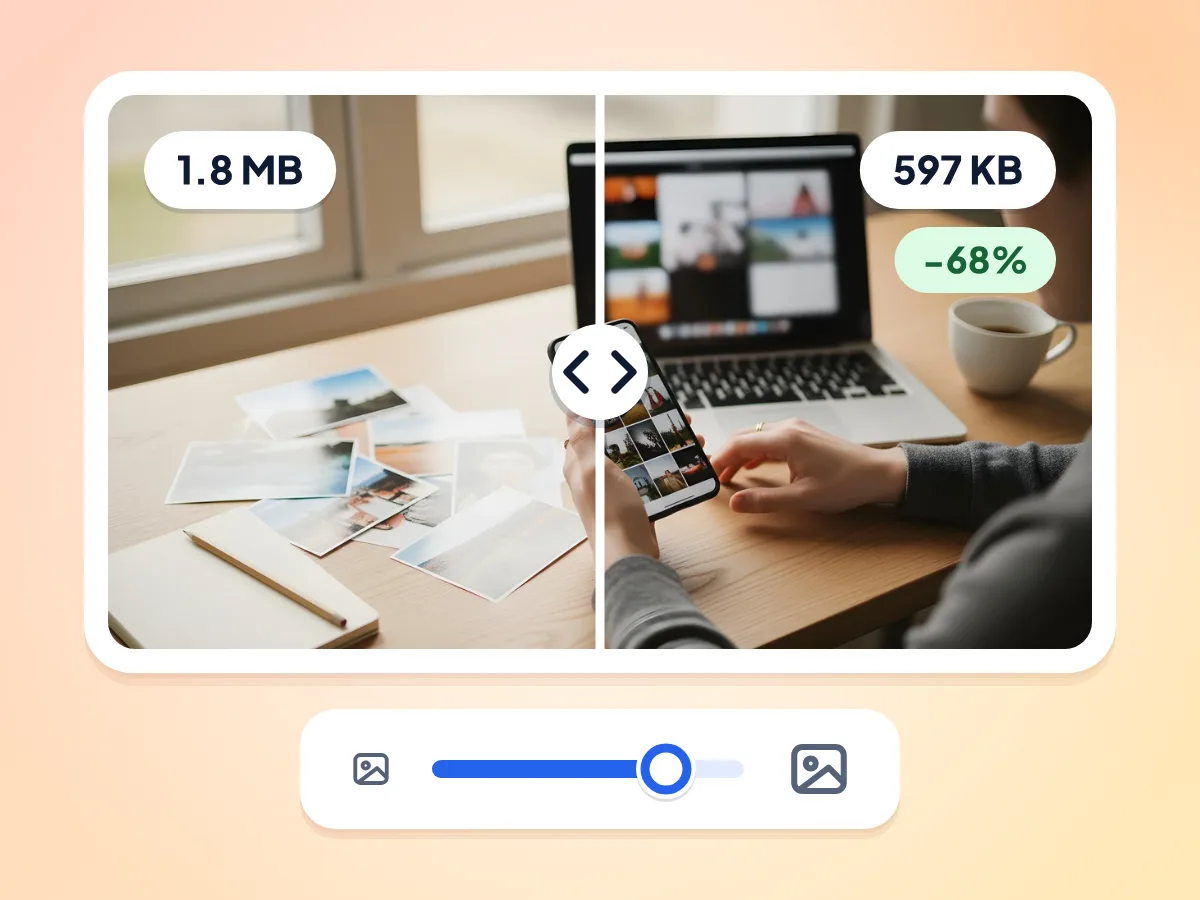
Drag the quality slider from 1 to 100 to trade size for detail. Then open any finished file to compare before and after with a drag handle and see its new size.
- Quality from 1 to 100, default 75
- Drag to compare before and after
- Old size, new size and percent saved
Your Photos Stay on Your Device
Your photos are compressed on your computer or phone and saved straight to your downloads. They never leave your device, so it's safe for ID scans, receipts and personal photos.
Five Output Formats Plus Original
Add JPEG, PNG, WebP, AVIF, GIF or iPhone HEIC files. Save as JPEG, PNG, WebP, AVIF or GIF. Original keeps the format and turns HEIC into JPEG.
Set a Target Size in KB
Type a size like 50KB or 200KB, or tap 100 KB, 250 KB, 500 KB or 1 MB. The tool tries up to 8 quality levels and keeps the sharpest one that fits.
No Sign-Up, No Watermarks
Add files up to 50 MB each, with no daily cap on how many batches you run. Every download is watermark-free, and you never need an account to use the tool.
Popular Ways to Use an Image Compressor
From faster web pages to smaller email attachments, compressing images solves real, everyday file size problems.
For Web and Blog Performance
Shrink hero images and thumbnails so your pages load faster. Set a target size in KB to aim for the same size budget on every image on a page.
- Shrink large hero images so the top of the page appears sooner
- Compress a full set of blog images before adding them to your CMS
- Cap the longest edge at 1920 px to cut page weight
For Email and Messaging
Bring large photos under the size caps used by email and chat apps without cropping or resending. Pick a target size like 100KB or 1MB and let the tool find the right quality.
- Fit dozens of photos under Gmail and Outlook attachment limits
- Speed up uploads in Slack, Discord, or Teams
- Shrink high-resolution scans of receipts and documents before sending
For Storage and Archiving
Free up space on your phone, laptop, or cloud drive by compressing old photo libraries in batches. Strip metadata and choose WebP or AVIF output for smaller archives.
- Shrink a full camera roll export before you back it up
- Cut down on Dropbox, iCloud, or Google Drive storage use
- Convert bulky PNG screenshots to WebP for smaller archives
Explore More Tools
Discover other free tools that work great alongside this one
JPEG Compressor
Shrink JPG photos with a quality slider or KB target
PNG Compressor
Cut PNG size with fewer colors, transparency kept
GIF Compressor
Make animated GIFs smaller and keep every frame
WebP Compressor
Shrink WebP images, animated ones stay animated
Image Resizer
Resize images to exact dimensions
Background Remover
Remove image backgrounds and save a transparent PNG
Image Converter
Convert between 30+ image formats
PNG to WebP
Smaller WebP files, transparency kept
JPG to PNG
Convert JPG to lossless PNG format
HEIC to JPG
Convert iPhone photos to universal JPG
Frequently Asked Questions About Image Compression
Answers about target sizes, formats, batch limits, and privacy for the online image compressor.
How do I compress an image to a specific KB size?
Type the size in the Target file size box, such as 50KB or 1.5MB, or tap a preset: 100 KB, 250 KB, 500 KB or 1 MB. A plain number counts as KB. The tool then tries up to 8 quality levels and keeps the sharpest one under your target, with the quality slider turned off.
Why is my compressed image still bigger than the target size?
Because some images can't get that small at any quality. Then the tool shrinks the width and height by 20% at a time, up to 8 times, until the file fits. If it still doesn't, you get the smallest version, marked Over target (smallest possible). PNG barely shrinks, so choose JPEG or WebP.
What is the difference between resizing and compressing an image?
Compressing lowers file size by reducing quality or metadata while keeping the same width and height. Resizing changes the actual pixel dimensions of the image. This tool does both: use the quality slider or target size field to compress, and the resize section to scale by percentage or set a maximum edge length in pixels.
How do I compress multiple images at once?
Drop the whole batch onto the upload area, or select several files at once. Each photo lands in a queue with its size and status. Click Compress Image once and every file is processed in turn, then download them one by one or get all finished images in one ZIP.
Which image format gives the smallest file size?
WebP and AVIF usually give the smallest files at the same visual quality. Both also have a Lossless switch under Advanced for when you need every pixel kept. JPEG is the safe choice for older apps and upload forms. PNG output is always lossless, so it suits logos and images with transparency, not photos.
What is the maximum file size for this image compressor?
Each image can be up to 50 MB, and larger files are left out of the batch. There's no set limit on how many images you add and no daily cap. Every file and its result stay in memory until you leave the page, so on a phone, split very large batches into smaller groups.
Can you compress an image that has already been compressed?
Yes, but each extra pass throws away more detail and saves less space. A JPEG that was already squeezed may shrink only a little, and can even grow at a high quality setting. For a smaller file, go back to the original and use a lower quality or a smaller target.
Does compressing an image reduce its quality?
Lossy compression does, but at moderate settings the change is hard to spot. JPEG, WebP and AVIF drop fine detail as the quality slider goes down from the default of 75. PNG output and the Lossless switch keep every pixel. Open the before and after view to check each file.
Does the image compressor remove EXIF and location data?
Yes, by default. Strip metadata is on, so camera details, GPS location, XMP data and comments are removed. Photos are turned upright first, and the color profile is kept so colors don't shift. Turn the switch off under Advanced if you want to keep the metadata.
How do I compress an image for email or a form upload?
Find the form's size limit, then type it in the target size box. For email, 1 MB per photo keeps about 15 photos under Gmail's 25 MB attachment limit. If the form also limits pixel size, set Max edge under Resize, for example 1200 px.
Can I compress a PNG and keep its transparent background?
Yes. Save it as PNG, WebP, AVIF or GIF and the transparent areas stay clear. JPEG has no transparency, so if you pick it, the clear areas are filled with the Background color under Advanced, which is white unless you change it.
Is it safe to compress private photos here, and do I need an account?
Yes. Your photos are compressed on your own computer or phone and saved straight to your downloads, so they never leave your device. You don't need an account. The page records only basic usage stats, such as your settings and a file size range, never the images or their names.