

Free Online Video Compressor
Reduce video file sizes while maintaining sharp 1080p and 720p resolution. Perfect for Discord (8MB/25MB limits), email, and web sharing.
Drop your video here
or click to browse. Works with MP4, MOV, WebM, AVI and more
What This Free Video Compressor Does
Pick one of three quality presets and get a standard H.264 MP4 back. No account, no watermark and nothing to install.
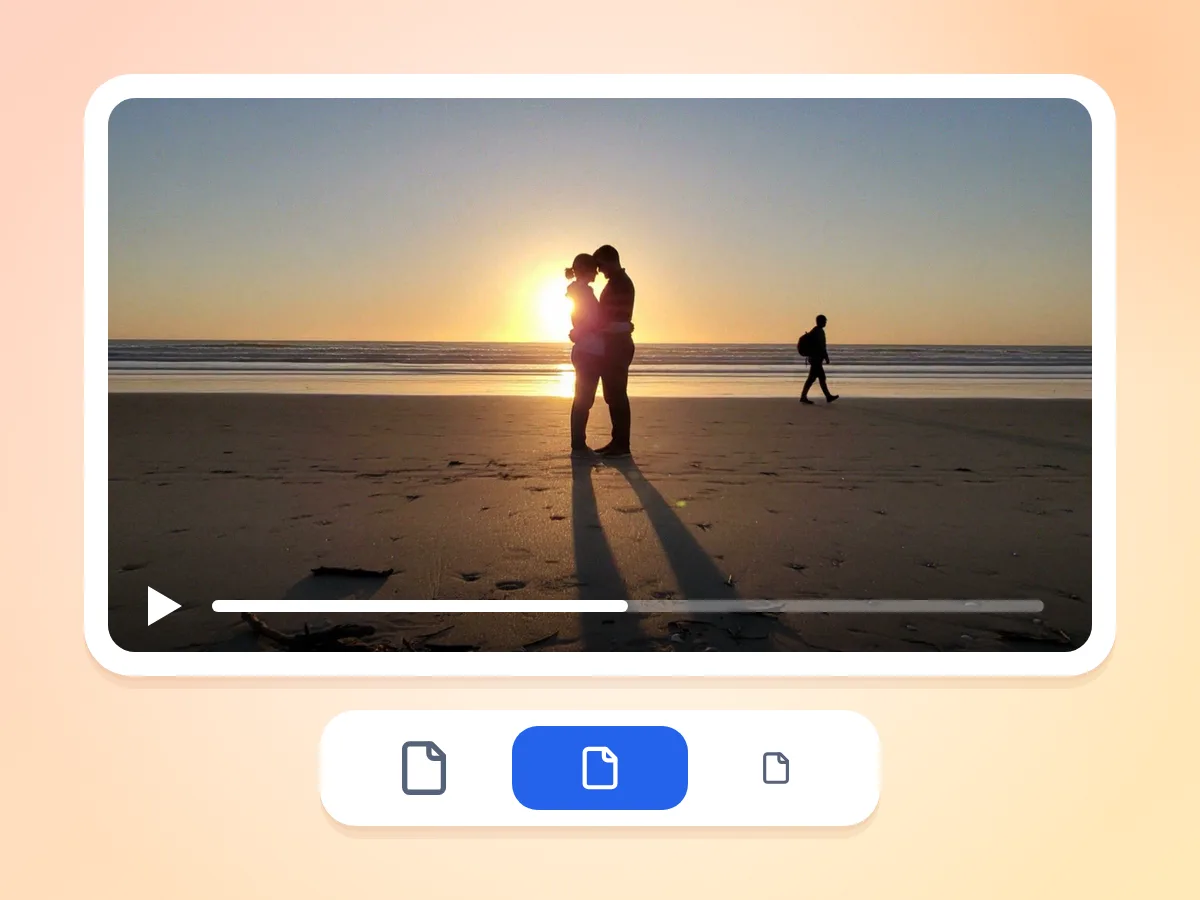
Compress Video With Three Quality Presets
Choose High Quality, Balanced or Max Compression. Balanced is the default. High keeps the most detail, and Max makes the smallest file with some visible quality loss.
- High Quality keeps the most detail
- Balanced is selected for you
- Max Compression makes the smallest file
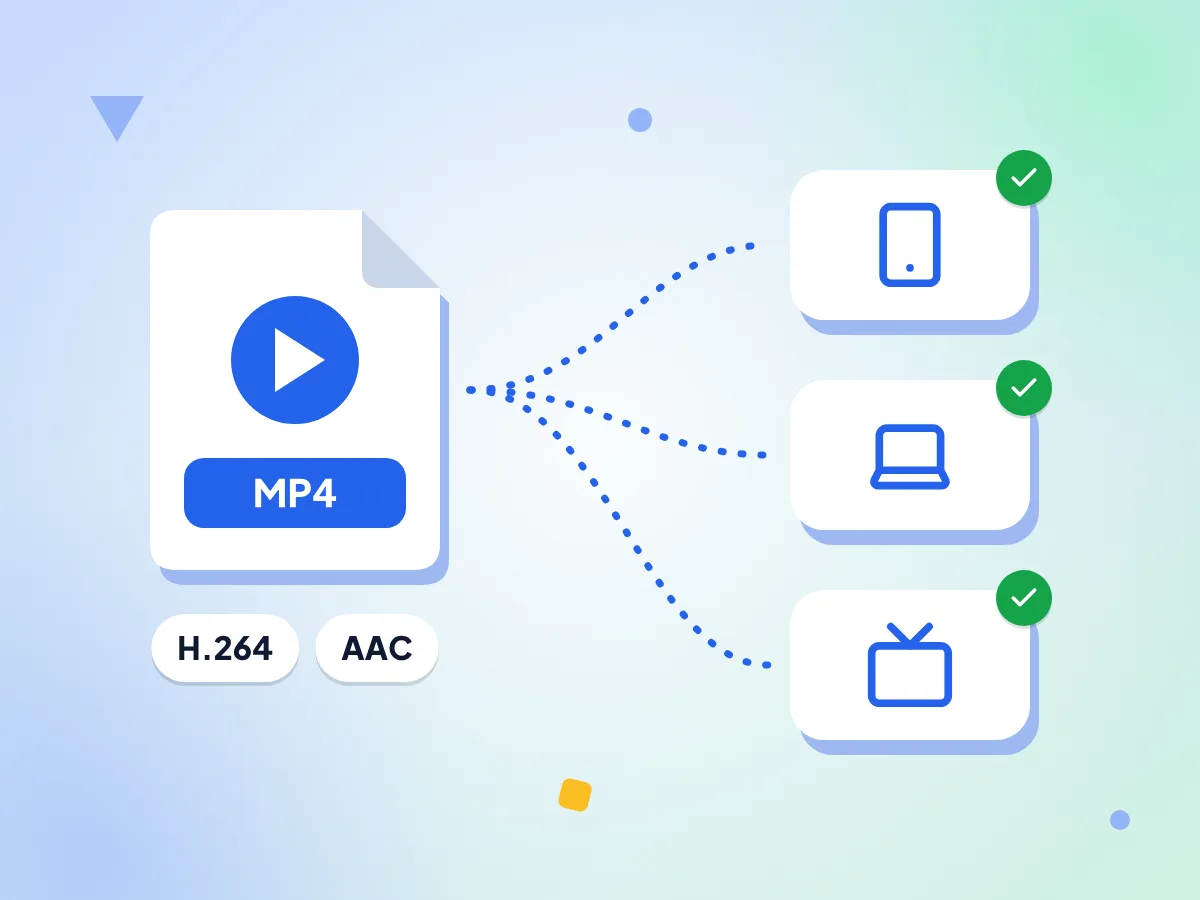
Compressed Video Saved as H.264 MP4
Videos are saved as MP4 with H.264 video and AAC audio, which phones, laptops and TVs can play. MOV, WebM and AVI convert to MP4. If the MP4 would be bigger, you keep your original.
- H.264 video with AAC audio
- Starts playing online before fully downloaded
- Named after your file, plus the preset
Same Resolution and Frame Rate
The compressor keeps your video's resolution, frame rate and orientation. It saves space by re-encoding the picture, so a 1080p clip stays 1080p and a portrait video stays upright.
Your Video Stays on Your Device
The video is read and compressed inside this browser tab, then saved to your downloads. It is never sent to our servers, which suits family clips and work recordings.
See How Much Space You Saved
When compression finishes, the editor shows the original size, the new size and the percent saved. Change the preset and compress again if the file is still too big.
No Sign-Up, No Watermark
Compress as many videos as you like, one at a time, with no account and no daily cap. The tool adds no watermark or logo to your video.
How to Compress a Video in 3 Steps
Add your video.
Drop one video onto the page or click to choose it. MP4, MOV, WebM, MKV and AVI files all work, and only one video goes in at a time.
Pick a quality preset.
Balanced is selected for you. Choose High Quality to keep more detail, or Max Compression when the smallest file matters most.
Compress and download.
Press Compress Video and wait for the progress bar; long videos take a while. Check the new size and percent saved, then download your MP4.
Who Uses the Video Compressor
Anyone whose video is too big to share: creators, teams and anyone who has hit a "file too large" error.
Discord, WhatsApp and Chat Apps
Chat apps cap the files you can send. Try Max Compression for the smallest file, and trim long clips first so they fit under the limit.
- Shrink gameplay clips to share on Discord
- Send phone videos in WhatsApp or Telegram
- Post screen recordings in Slack or Teams
Email & Messaging
Email services cap attachments, often around 20 to 25 MB, and a minute of phone video can run past that. Compress short clips so they attach directly.
- Fit a short clip under your email's attachment cap
- Attach a product demo to a client email
- Email a quick screen recording to support
Storage & Archiving
Phone videos, screen recordings and webcam footage fill up storage fast. Compress the ones you want to keep and free space on your phone, laptop or cloud drive.
- Shrink camera-roll videos before backing them up
- Archive screen recordings and recorded meetings
- Keep more videos in your free cloud storage
Frequently Asked Questions
Answers to the most common questions about compressing video files online.
How do I compress a video without losing quality?
Use the High Quality preset. It compresses gently, so fine detail stays close to the original, but every re-encode loses a little, so no preset is truly lossless. Resolution and frame rate never change. High saves the least space, and if a video would grow, you get the original back.
How do I compress a video to under 10MB for Discord?
Pick Max Compression, press Compress Video and check the new size. There's no box to type a target like 10 MB, so the result depends on your clip. If it's still too big, cut it shorter with the video trimmer and compress the shorter clip.
What do the High Quality, Balanced and Max Compression presets do?
They set how much detail the compressor keeps. High Quality keeps the most and makes the biggest file. Balanced sits in the middle and is selected when you open a video. Max Compression makes the smallest file, with more blur in fast motion. Change the preset and compress again any time.
Does the video compressor keep the sound?
Yes. The sound is kept and re-encoded as AAC at 128 kbps. A video with no sound also works. Only one audio track is kept, so a file with two language tracks comes out with just one.
Does the video compressor change the resolution or frame rate?
No. A 4K video stays 4K, a 60 fps clip stays 60 fps, and portrait phone videos keep their orientation. Only the way the picture is encoded changes. To make the frame smaller as well, resize the video in an editing app before you compress it.
Which video formats can I compress, and what format do I get?
Most video files work, including MP4, MOV, WebM, MKV and AVI. The result is an MP4 with H.264 video and AAC audio, named like your file plus the preset, such as holiday-compressed-balanced.mp4. Only one audio track is kept. If the MP4 would be bigger, you keep your original file.
Can I compress iPhone videos?
Yes, iPhone MOV files compress to MP4 like any other video. Clips filmed in HDR, which recent iPhones use by default, come out as standard 8-bit H.264 that phones, TVs and browsers can play. The HDR look isn't kept, so colors can look different from the original.
Why is my compressed video bigger than the original?
It shouldn't be. Clips that were compressed hard already, like many saved from chat apps, can grow when re-encoded, partly because every preset sets the audio to 128 kbps. When that happens, the tool keeps your original, says so, and the button changes to Download original.
Why does video compression take so long?
The whole video is re-encoded on your own device, and the engine uses a single processor core, so it is slower than desktop apps. A long or 4K video can take many minutes. Keep the tab open until the progress bar finishes, because closing it stops the job.
How large a video can I compress?
The tool sets no size or length limit, and there's no daily cap. The whole video is held in your device's memory while it compresses, though, so very large or long files can fail on phones and low-memory computers. If that happens, trim the video into shorter parts first.
Is it safe to compress private videos here?
Yes. The video is compressed on your device and saved to your downloads, and we never receive a copy. Usage stats are sent, such as the preset, file type and a rough size range, but not the video or its name. A location tag stored in the video may be copied to the new file.
Can I compress multiple videos at once?
No, the compressor works on one video at a time. When a video is done, download it, then press Upload another video to add the next one. There's no daily limit, so you can compress as many as you like, one after another.
Explore More Tools
Discover other free tools that work great alongside this one
Video Trimmer
Trim and cut video clips in browser
Video Converter
Convert videos between popular formats
MP4 Converter
Convert to and from MP4 format
MOV to MP4
Convert QuickTime videos to MP4
MP4 to MP3
Extract audio from video files
Audio Converter
Convert audio files to any format