

Rotate Image Online Free
Rotate an image 90°, 180° or 270° for free and download it at full size. JPG, PNG, WebP, GIF, HEIC and TIFF all work, and your photo stays on your device.
Drop your image here
or click to browse. JPG, PNG, WebP, GIF, BMP, AVIF, SVG, ICO, TIFF and HEIC
Rotate and Flip Images at Full Resolution
Turn sideways photos and scans upright in 90° steps. The pixel size stays the same, and you keep the format or save as JPG, PNG or WebP.
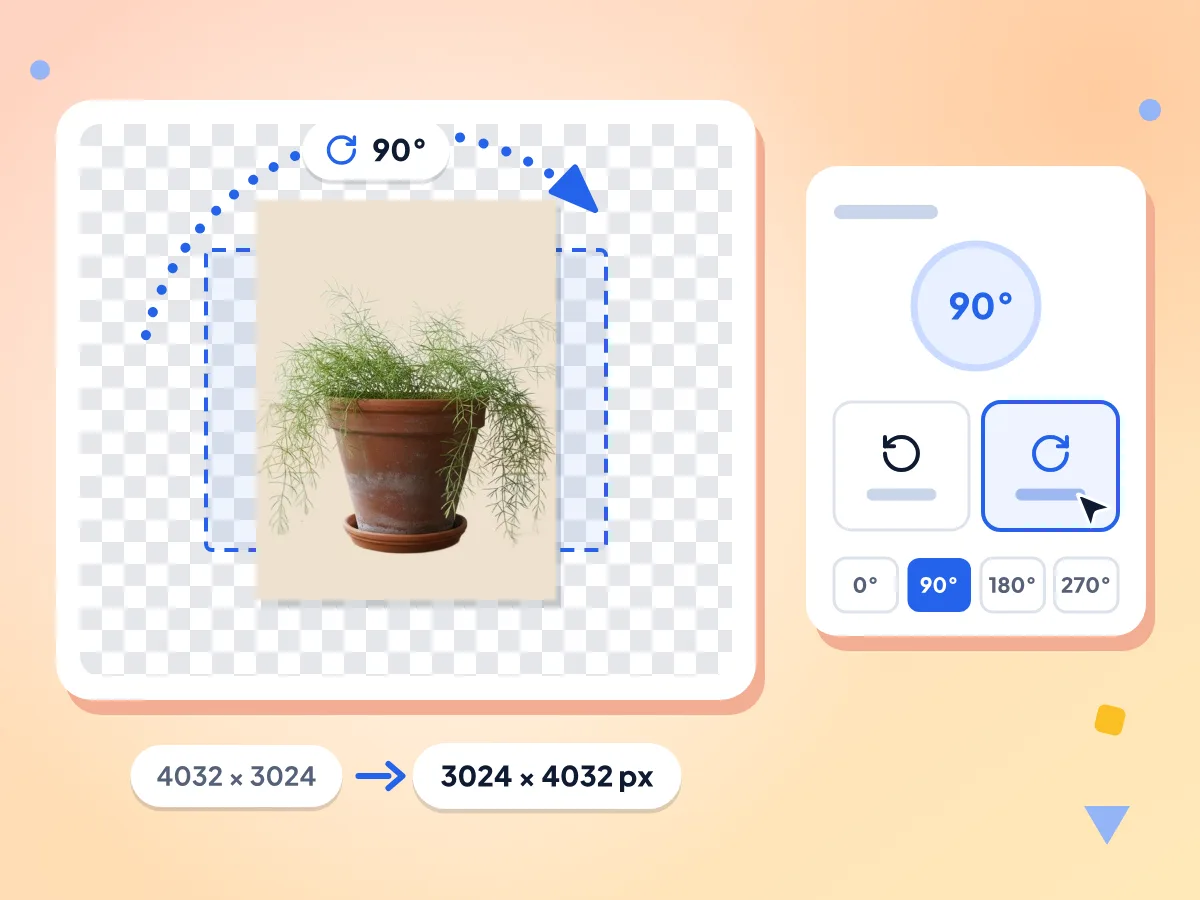
Rotate Images 90, 180 or 270 Degrees
Click Rotate Left or Rotate Right to turn the image a quarter turn, or jump straight to 0°, 90°, 180° or 270°. Width and height swap on 90° and 270°, with no cropping.
- Rotate Left and Rotate Right buttons
- One-click 0°, 90°, 180° and 270°
- No cropping or empty corners
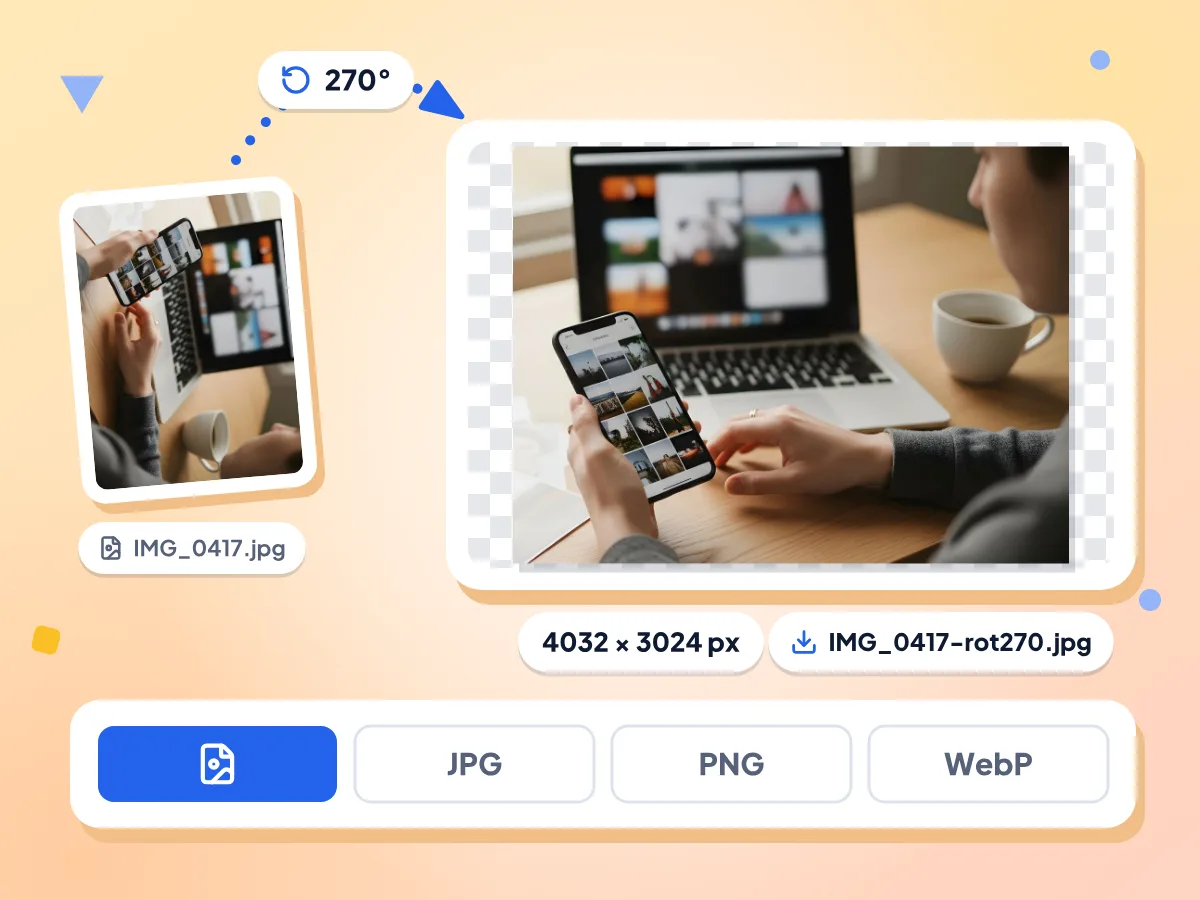
Rotate Without Losing Size or Format
Choose Original to keep a JPG, PNG, WebP or GIF in its own format, or switch to JPG, PNG or WebP. The pixel size never changes, and PNG adds no compression loss.
- Original, JPG, PNG or WebP output
- Same pixels, sides swap at 90° and 270°
- Check the new size before download
Flip in the Same Editor
Flip Horizontal and Flip Vertical sit under the rotate buttons and work with any angle. If flipping is the main job, the Mirror Image tool opens with Flip Horizontal already on.
Animated GIFs Stay Animated
Rotate a GIF with Original selected and every frame turns together, so the animation still plays. Animated WebP keeps its frames too when you save as WebP. Picking JPG or PNG saves one still frame.
HEIC, TIFF and More
Open iPhone HEIC photos, TIFF scans, BMP, AVIF, SVG and ICO files as well as JPG, PNG, WebP and GIF. HEIC and TIFF take a moment to load, and Original saves them as PNG.
Your Photo Stays on Your Device
Turning and flipping happen inside this browser tab, and the file downloads straight from it. The page counts clicks and size ranges for anonymous stats, but your image and its name are never sent.
How to Rotate an Image in 3 Steps
Add your image.
Drop one JPG, PNG, WebP, GIF, HEIC or other image onto the box, or click to choose it. The editor opens with a preview.
Turn it the right way.
Click Rotate Left or Rotate Right, or pick 0°, 90°, 180° or 270°. Add a horizontal or vertical flip if you need one, and choose the output format.
Download the result.
Check the preview and the size in pixels under it, then click Download. The file name tells you what changed, such as photo-rot90.jpg.
When You Need to Rotate an Image
Sideways phone photos, upside-down scans and turned screenshots are the usual reasons.
Sideways Phone Photos
A phone photo that shows up sideways can be turned upright in one or two clicks. The preview shows the result before you download.
- Turn a sideways portrait photo upright before posting
- Fix a photo that shows sideways in other apps
- Rotate a screenshot taken in landscape mode
Scans & Documents
Scanners and phone scan apps often save pages upside down or on their side. Rotate the page 90° or 180°, then attach the image to an email or form.
- Rotate an upside-down receipt for an expense report
- Turn a sideways ID card or form scan upright
- Turn a TIFF scan upright and save it as PNG
Designers & Creators
Turn icons, artwork and textures a quarter turn before you place them in a layout. PNG output keeps transparent areas, and animated GIFs keep every frame.
- Rotate a transparent PNG icon and keep its clear areas
- Turn an animated GIF or sticker on its side
- Rotate an SVG icon and save it as a PNG
Frequently Asked Questions
Answers to the most common questions about rotating and flipping images online.
How do I rotate an image online for free?
Drop the image on this page, then click Rotate Left or Rotate Right until it sits the right way, or pick 0°, 90°, 180° or 270°. Click Download to save it. There is no sign-up, no watermark and no daily limit.
Can I rotate an image by 45 degrees or a custom angle?
No. This tool turns images in 90° steps only: 0°, 90°, 180° and 270°. There is no slider for angles like 45° or 2°, so it can't straighten a tilted horizon. Quarter turns never crop the edges or leave empty corners.
Does rotating an image reduce its quality?
Not if you save as PNG. The pixel size stays the same and PNG stores the turned image with no compression loss. JPG and WebP are re-saved at 92% quality, which can soften fine detail slightly and change the file size.
Does rotating change the image dimensions?
The pixel count stays the same. At 90° and 270° the width and height swap, so a 4000 × 3000 photo becomes 3000 × 4000. The new size shows under the preview. The file size in KB can change because the image is saved again.
Why does my photo show up sideways?
Many phones store a photo on its side and add a rotation tag that tells apps how to show it. Apps that ignore the tag show it sideways. The file saved here is a new image with no rotation tag, so it looks the same in every app.
Which image formats can I rotate?
JPG, PNG, WebP, GIF, BMP, AVIF, SVG, ICO, TIFF and HEIC files open here. With Original selected, JPG, PNG, WebP and GIF keep their format, and the others save as PNG. You can also switch the output to JPG, PNG or WebP.
Can I rotate and flip at the same time?
Yes. Flip Horizontal and Flip Vertical work with any angle, and the preview shows the combined result before you download. If flipping is your main job, the Mirror Image tool opens with Flip Horizontal already on, so you only need to click Download.
Can I rotate an animated GIF?
Yes. With Original selected, every frame of a GIF turns together, so the animation keeps playing. An animated WebP keeps its frames when you save it as WebP. Choosing JPG or PNG saves only one still frame.
Can I rotate an iPhone HEIC photo?
Yes. HEIC and HEIF photos open here, along with TIFF scans. They take a moment to load while they are decoded, then rotate like any other image. With Original selected they save as PNG; pick JPG if you want a lighter file.
Will a transparent PNG stay transparent after rotating?
Yes, if you save as PNG or WebP. Both keep the see-through areas in place after the turn, and the preview shows them on a checkerboard. JPG cannot store transparency, so keep PNG or WebP when you need clear areas.
Can I rotate many images at once?
No. The tool rotates one image at a time and has no batch mode or ZIP download. After you download, click the back arrow or Reset to return to the upload box, then add the next image.
Is my image sent to a server when I rotate it?
No. The turn and the save both happen in your browser tab. What the page does send is anonymous usage data, such as an angle you picked, the format you chose and a rough file size, never the image itself or its name.
Explore More Tools
Discover other free tools that work great alongside this one
Mirror Image
Flip any image horizontally or vertically online for free
Image Compressor
Reduce file size without losing quality
Image Resizer
Resize images to exact dimensions
Background Remover
Remove image backgrounds and save a transparent PNG
Image Converter
Convert between 30+ image formats
Color Converter
Convert HEX, RGB and HSL color codes as you type
PNG to WebP
Smaller WebP files, transparency kept