

Video Trimmer
This free video trimmer cuts MP4, MOV, WebM, MKV and AVI files without losing quality. Drag the handles or type times, then download. No sign-up or watermark, and your video stays on your device.
Drop your video here
or click to select a video file (MP4, MOV, WebM, AVI, and more)
Choose videosTrim Video Without Sacrificing Quality
Keep the original format and the trimmer copies your video without re-encoding, so the clip keeps the source quality. No watermark, no sign-up.
Trim MOV, MKV or MP4 Without Re-encoding
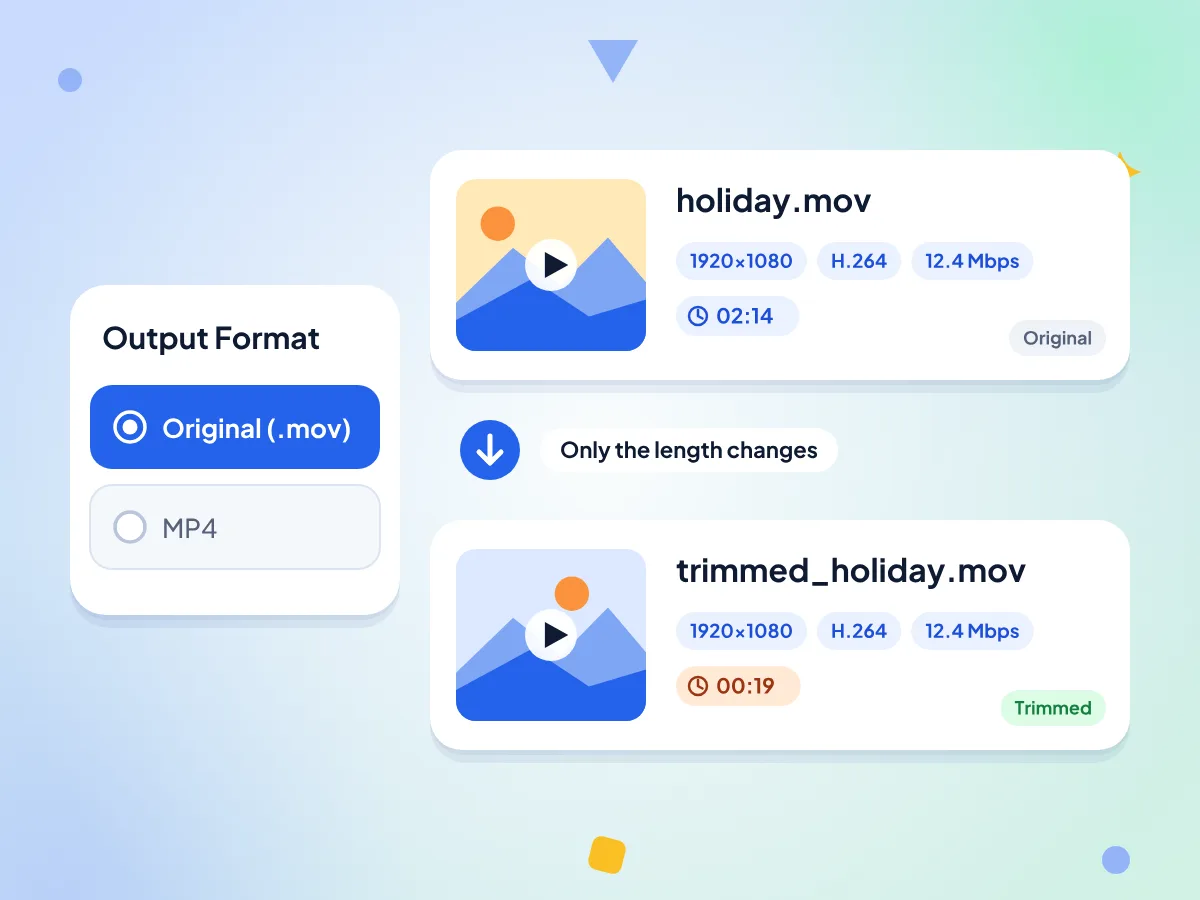
Leave the output on Original and the trimmer copies your video and audio as they are, with no re-encoding. The clip keeps the source's resolution, bitrate and codec, just shorter.
- Original keeps the source format
- Same codec, resolution and bitrate
- Saved as trimmed_ plus your file name
Trim Video by Dragging or Typing Times
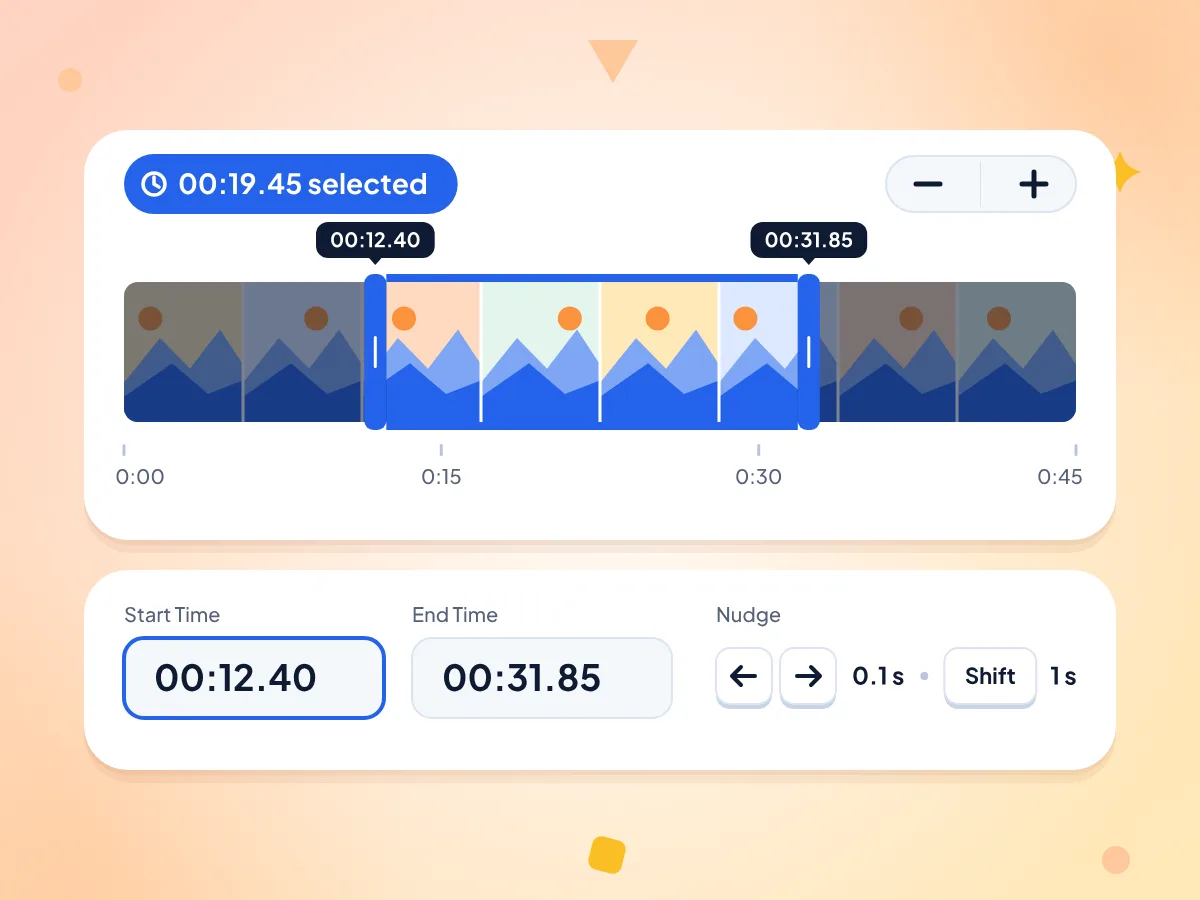
Drag the handles on the filmstrip timeline, type times like 01:23.45, or nudge a handle with the arrow keys in 0.1-second steps. Videos over a minute get a zoom control.
- Type times like 01:23.45
- Arrow keys nudge 0.1 s, Shift 1 s
- Zoom in on videos over 60 seconds
Your Video Stays on Your Device
Your video opens in this browser tab and the clip saves straight to your device. The footage itself never leaves your computer or phone, so private and work recordings stay that way.
Opens MOV, MKV, AVI and More
Trim MP4, MOV, WebM, MKV, AVI and WMV files. Formats your browser can't play get a strip of preview frames instead of a player. Save in the original format, or save non-MP4 files as MP4.
No Size Cap or Daily Limit
The trimmer sets no file size, video length or daily limit of its own. How large a file you can trim depends on the free memory on your computer or phone.
No Watermark, No Sign-Up
Every trim is free. Your clip gets no watermark or logo, and you don't need to sign up or install anything. Open the page, trim, and download.
How to Trim a Video in 3 Steps
Add your video.
Drop a video onto the page or click to choose one from your computer or phone. The editor opens with a preview and a filmstrip timeline.
Set your cut points.
Drag the two handles to the part you want to keep, or type start and end times. The Selected box shows the clip length as you go.
Trim and download.
Keep the Original format, or choose MP4 for non-MP4 files, then click Trim Video. When it finishes, click Download Trimmed Video to save the clip.
Who Uses the Video Trimmer
For anyone who needs one clean clip from a longer video, without installing editing software.
Content Creators & Streamers
Cut highlights out of long stream recordings for social posts and channel trailers. The Original setting keeps full quality, so each clip looks as sharp as your recording.
- Cut Twitch and YouTube stream highlights into short clips
- Trim clips down for TikTok, Instagram Reels and YouTube Shorts
- Remove dead air from the start and end of a recording
Business & Marketing
Turn long demos, webinars and meeting recordings into short clips for LinkedIn, newsletters or team updates. Screen recordings in MOV or WebM can be saved as MP4 in the same step.
- Pull a product demo segment out of a recorded webinar
- Cut a short customer testimonial from a longer interview
- Share the key decision from a long meeting recording
Personal & Everyday
Trim phone videos, family moments and gameplay captures before you share or archive them. Cutting the extra footage also makes the file smaller and quicker to send.
- Cut the shaky start and end off phone videos
- Trim gameplay moments into short clips for Discord chats
- Cut a short clip for your WhatsApp Status or family chat
Frequently Asked Questions
Answers to the most common questions about trimming videos online.
How do I trim a video without losing quality or re-encoding?
Leave Output Format on Original, which is the default. The trimmer then copies the video and audio streams as they are, so the clip keeps the source's codec, resolution and bitrate. It only re-encodes when you pick MP4 for a file with other codecs, such as WMV or WebM.
Is this video trimmer free, with no watermark?
Yes. Trimming is free, and the trimmer adds no watermark, logo or end screen to your clip. There's no trial period and no daily cap, so you can trim as many videos as you want.
Can I trim MOV, MKV or AVI files, or only MP4?
You can trim MP4, MOV, WebM, MKV, AVI and WMV files. Files your browser can't play, such as AVI and WMV, still open: you place your cuts on a row of still frames instead of a video player. The clip comes back in the same format unless you choose MP4.
Can I trim a video and convert it to MP4 at the same time?
Yes, for any file that isn't already MP4. Pick MP4 under Output Format before you trim. H.264 or HEVC video with AAC or MP3 sound is copied as it is. Other codecs, such as a WebM's VP9 or a WMV's, are re-encoded to H.264 and AAC, which takes longer.
Is there a file size or video length limit?
No. The trimmer has no built-in cap on file size, video length or number of trims. The whole video does load into your browser's memory, so a very large file can fail on a phone or a computer with little free memory. Closing other tabs frees up room.
Can I trim several videos at once?
No. The trimmer opens one video at a time and makes one clip per trim. To cut several clips from the same video, download the first one, close the result window, move the handles and click Trim Video again.
Why does my trimmed clip start earlier than the time I set?
MP4 and MOV clips start at the time you set. Other formats, such as MKV, are copied without re-encoding, so the clip begins at the nearest keyframe before your start and can run a little longer at the front. Save it as MP4 to start at your time in players that read MP4 edit lists.
Why does trimming take longer on some videos?
Usually it's the first trim or an MP4 conversion. The first trim downloads the video engine, about 30 MB. Big files also take time to load into memory. MP4 output that needs re-encoding, such as from WMV, uses only one processor core, so long clips take a while.
Is it safe to trim private or work videos here?
Yes. The trimming happens inside your browser, and the finished clip goes straight to your downloads, so your footage stays on your device. The page records only basic usage stats, like file type, a size range and trim times, never the video itself or its file name.
Do I need an account or an app to trim videos?
No. There's no sign-up, no account and nothing to install. The trimmer runs in your web browser on a computer or phone, and on small screens the Trim Video and Download buttons stay pinned to the bottom.
Explore More Tools
Discover other free tools that work great alongside this one
Video Converter
Convert videos between popular formats
MP4 Converter
Convert to and from MP4 format
MOV to MP4
Convert QuickTime videos to MP4
MP4 to GIF
Create animated GIFs from video clips
MP4 to MP3
Extract audio from video files
Audio Converter
Convert audio files to any format